How to Reset Nest Thermostat | Factory Reset and Restart Guide-2025
Updated: 9-Sep-2025
217
Smart thermostats like the Google Nest have become a staple in American households. They save energy, offer convenience, and give homeowners more control over heating and cooling systems. But like any smart device, sometimes they need a reset—whether you’re troubleshooting, moving to a new home, or just want to start fresh.
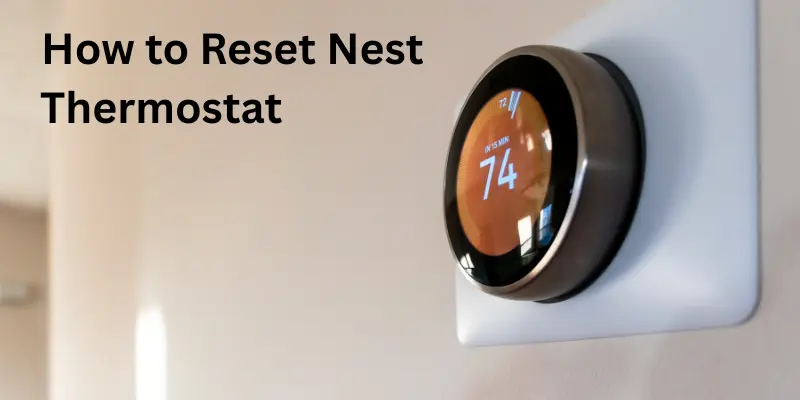
In this detailed guide, we’ll cover how to reset Nest Thermostat, when to use a simple restart versus a factory reset, how to perform a factory reset Nest thermostat without the app, and step-by-step Nest thermostat instructions. We’ll also explain how to use Nest Thermostat after resetting it, and provide answers to common problems faced by American users.
By the end, you’ll know exactly how to manage every reset option with confidence.
Why Resetting Matters
Nest thermostats are designed to be reliable and intuitive. But over time, you might notice issues such as:
- The thermostat not connecting to Wi-Fi
- Schedules behaving incorrectly
- Frozen or unresponsive screens
- Selling your home and needing to clear personal data
- Wanting to start fresh with energy-saving schedules
Restart vs. Factory Reset: Understanding the Difference
Before jumping into instructions, it’s important to know the difference between a restart and a factory reset.
- Restart (Soft Reset):
Similar to rebooting a phone or computer. It shuts down and powers the thermostat back up, but your settings, schedules, and Wi-Fi information remain intact. This is the first step when troubleshooting issues. - Factory Reset:
This wipes everything—personal data, schedules, Wi-Fi settings, and Nest account connection. Use this when selling your home, gifting the device, or troubleshooting major issues that a restart doesn’t fix.
Think of it this way: Restart = refresh. Factory Reset = back to brand new.
How to Restart Nest Thermostat (Soft Reset)
Follow these steps to perform a simple restart:
- Press the thermostat ring to bring up the Quick View menu.
- Rotate the ring and select Settings (gear icon).
- Scroll and choose Restart.
- Confirm by selecting OK.
Your thermostat will shut down and reboot. This usually solves small glitches like a frozen display or temporary connection issues.
How to Factory Reset Nest Thermostat
When you need a complete reset, here’s how to factory reset Nest thermostat:
- Press the thermostat ring to open the Quick View menu.
- Go to Settings → Reset.
- Choose All Settings.
- Confirm when prompted.
This erases everything, including Wi-Fi, schedules, and paired devices. The thermostat will reboot as if brand new, ready for setup.
Best Use Case: Selling your home, moving, or troubleshooting major software issues.
How to Factory Reset Nest Thermostat Without App
Sometimes you don’t have access to the Nest app—for example, if your phone isn’t connected or you’ve already removed the thermostat from your account. In this case, you can still reset it directly from the device:
- On the Nest thermostat, press the ring to open the menu.
- Go to Settings → Reset → All Settings.
- Confirm reset.
This works the same way as resetting through the app, making it a reliable option for homeowners who need quick access without digital assistance.
Nest Thermostat Instructions After Reset
After resetting, you’ll need to set up your thermostat again. Here are step-by-step Nest thermostat instructions:
- Language & Location: Choose your preferred language and confirm your location (U.S. users should ensure correct ZIP code for weather-based adjustments).
- Wi-Fi Connection: Select your home Wi-Fi network and enter the password.
- System Info: Tell the Nest what type of system you have (heating, cooling, heat pump, etc.).
- Schedule Setup: You can either create a manual schedule or allow the Nest Learning Thermostat to automatically build one over time.
- Nest App Pairing (Optional): Add the thermostat to your Nest app or Google Home app for remote access and voice control.
This setup ensures your thermostat is ready to save energy and keep your home comfortable.
How to Use Nest Thermostat After Reset
Once reset, your thermostat will operate like a new device. Here’s a refresher on how to use Nest thermostat effectively:
- Turn the Ring: Rotate clockwise to increase temperature, counterclockwise to decrease.
- Press the Ring: Brings up the Quick View menu for settings, history, and schedules.
- Energy History: Review your daily/weekly energy use to optimize savings.
- Home/Away Assist: Nest automatically adjusts temperature when you leave or return.
- Learning Feature (Nest Learning Thermostat only): Over time, it adapts to your preferred schedule.
With these functions, you’ll maximize comfort and energy efficiency.
Common Reasons Americans Reset Their Nest Thermostat
- Wi-Fi Connectivity Issues
- Frozen Screen or Lagging Performance
- Selling a House (remove personal data)
- Moving to a New Home
- Troubleshooting HVAC Problems
- Error Messages (e.g., low battery, C-wire issues)
- Smart Home Reconfiguration (switching Wi-Fi routers or ISPs)
- Schedule Reset Needs
- Forgotten PIN Code
- Pairing with New Google Account
Troubleshooting Reset Issues
Even after a reset, some users face issues. Here’s how to handle them:
- Nest won’t restart: Check the battery level. If the battery is low, charge it via USB or check the C-wire connection.
- Thermostat frozen during reset: Hold down the ring for 10 seconds to force a reboot.
- Wi-Fi not connecting after reset: Double-check your network password and router settings. Nest thermostats require 2.4 GHz or 5 GHz Wi-Fi.
- App won’t recognize thermostat: Ensure you’ve scanned the QR code during setup.
Quick Comparison: Restart vs. Reset
| Action | Keeps Data? | Best For | Time Required |
|---|---|---|---|
| Restart (Soft Reset) | Yes | Fixing minor glitches, frozen screen | 1–2 minutes |
| Factory Reset | No | Selling home, major troubleshooting, new owner setup | 5–10 minutes |
Tips to Avoid Frequent Resets
- Keep your Nest updated with the latest software.
- Ensure consistent Wi-Fi strength in your home.
- Use the Nest app to manage schedules instead of making too many manual changes.
- Regularly check battery levels or C-wire connections.
- Learn how to use Nest thermostat features fully—most issues come from misconfiguration, not device failure.
Future of Resetting Smart Thermostats
Google continues to improve the Nest ecosystem. Future updates may bring:
- Faster reset and restart options
- Automatic cloud-based backup of schedules and settings
- Smarter troubleshooting guidance directly on the thermostat screen
- Integration with more smart home platforms for smoother resets
For now, knowing how to factory reset Nest thermostat is the best way to keep your device running smoothly.
Comparison of Nest Thermostat Reset Options
| Reset Option | What It Does | Data Removed | When to Use | Time Required |
|---|---|---|---|---|
| Restart (Soft Reset) | Simply reboots the thermostat, like restarting a phone. | None (all schedules, Wi-Fi, and settings remain). | Frozen screen, slow performance, or temporary glitch. | 1–2 minutes |
| Schedule Reset | Deletes heating/cooling schedules. | Custom schedules only. | Want to start fresh with new time/temperature settings. | 2–3 minutes |
| Network Reset | Clears Wi-Fi and network settings. | Wi-Fi, router connection, and linked app data. | Switching internet providers, router upgrades, or Wi-Fi issues. | 3–5 minutes |
| Factory Reset | Restores device to original state. | Everything: schedules, Wi-Fi, accounts, PIN, and history. | Selling/moving homes, major issues, or new owner setup. | 5–10 minutes |
This table highlights all reset options side by side, so readers can instantly decide which reset fits their situation best.
Do’s & Don’ts of Resetting Nest Thermostat
Do’s
- Do try a restart first before jumping to a full factory reset. It often fixes small glitches without wiping your data.
- Do check the battery level (or C-wire connection) if the thermostat won’t restart or reset properly.
- Do back up your schedules in the Nest/Google Home app before a factory reset, if you plan to reuse them.
- Do perform a network reset instead of a full factory reset if your only issue is Wi-Fi connectivity.
- Do reset the thermostat before selling or moving to protect your personal data.
- Do follow official Nest thermostat instructions carefully to avoid repeating the reset process.
Don’ts
- Don’t factory reset unless necessary—it erases all settings and can take time to set up again.
- Don’t pull the thermostat off the wall abruptly during reset—this can damage the wiring.
- Don’t reset repeatedly—if issues persist, it may be a wiring, battery, or HVAC system problem.
- Don’t forget to re-add the thermostat to the Nest or Google Home app after a factory reset.
- Don’t ignore error codes—a reset won’t solve deeper hardware issues (e.g., HVAC wiring faults).
This list gives practical guidance for American homeowners, reinforcing safety, troubleshooting, and correct reset practices.
Nest Thermostat Reset Decision Guide
Not sure which reset to choose? Follow this simple step-by-step flow:
- Is your Nest thermostat frozen, lagging, or acting slow?
- Yes → Perform a Restart (Soft Reset)
- No → Go to Step 2
- Is your Wi-Fi connection failing or did you change internet providers?
- Yes → Do a Network Reset
- No → Go to Step 3
- Do you only want to start fresh with new temperature schedules?
- Yes → Do a Schedule Reset
- No → Go to Step 4
- Are you selling your home, moving, or experiencing major issues?
- Yes → Perform a Factory Reset
- No → Try basic troubleshooting before resetting.
This decision guide ensures homeowners don’t rush into a factory reset when a simple restart or schedule reset might solve the issue. It’s clear, logical, and easy for readers to follow.
Pro tip: You can visualize this as a flowchart (boxes + arrows) for better readability in blogs or guides
Real-Life Reset Scenarios: How Americans Use Nest Resets
To make resetting easier to understand, here are some real-world situations where homeowners in the U.S. rely on Nest thermostat resets:
- John in Texas (Selling a Home): John was selling his home and didn’t want the new owners to access his schedules, Wi-Fi, or Google account. He performed a factory reset Nest thermostat so the device was like new, ready for the buyers.
- Sarah in California (Wi-Fi Issues): Sarah switched internet providers and her thermostat couldn’t connect to the new router. Instead of doing a full reset, she did a network reset, which cleared only Wi-Fi data and allowed her to reconnect in minutes.
- Mike in New York (Frozen Screen): Mike’s Nest thermostat became unresponsive during winter. He performed a quick restart (soft reset), which fixed the frozen display without deleting his settings.
- Emily in Florida (Energy Savings): Emily wanted to scrap her old heating/cooling schedule and build a new one for her work-from-home routine. She used the schedule reset feature to start fresh without affecting Wi-Fi or app data.
These examples show why it’s important to know which reset to choose instead of going straight to a factory reset.
Pros & Cons of Each Reset Option
Here’s a deeper breakdown of the benefits and drawbacks of each reset type:
| Reset Type | Pros | Cons |
|---|---|---|
| Restart (Soft Reset) | Quick fix for glitches; doesn’t erase data; takes less than 2 minutes. | Won’t solve deeper Wi-Fi or account issues. |
| Schedule Reset | Clears only schedules; saves time when building new routines. | Energy history and schedules are deleted; requires manual setup again. |
| Network Reset | Solves Wi-Fi/router issues without touching schedules; faster than factory reset. | Must re-enter Wi-Fi info; doesn’t fix unrelated problems. |
| Factory Reset | Wipes everything—best for moving, selling, or starting fresh. | Time-consuming setup; erases all data, including history. |
With this table, American homeowners can easily compare reset methods before making a decision.
Maintenance Tips to Avoid Frequent Resets
While resetting is useful, you don’t want to rely on it too often. Here’s a checklist of maintenance tips to keep your Nest thermostat running smoothly:
- Update Firmware Regularly: Allow automatic updates or check for updates in the Nest app.
- Maintain Wi-Fi Strength: Place your router in a central location and ensure strong signal near the thermostat.
- Check HVAC Compatibility: Ensure wiring is correct and your system supports Nest features.
- Use a C-Wire or Battery Backup: Prevents low-power shutdowns and failed resets.
- Review Energy History: Spot unusual patterns that may point to HVAC or wiring issues.
- Avoid Excess Manual Changes: Let the Nest Learning feature do its job—too many manual changes can cause confusion.
- Clean Around the Device: Dust and debris can affect the sensors over time.
- Reboot Periodically: A simple restart every few months keeps performance smooth without wiping data.
- Secure Your Account: Enable two-factor authentication on your Google account for added security.
- Consult Professional Support: If issues persist even after resets, contact HVAC or Google Nest support rather than repeating resets.
Following these tips ensures your Nest thermostat stays efficient and reduces the need for frequent resets.
FAQs About Resetting Nest Thermostat
1. Will resetting my Nest erase all my data? Yes, a factory reset removes schedules, Wi-Fi, and account connections. A restart does not.
2. Can I reset my Nest thermostat without the app?
Absolutely. Use the thermostat ring to navigate to Settings → Reset → All Settings.
3. How long does a factory reset take?
Typically 5–10 minutes, including reboot and setup.
4. Do I need to reset when moving to a new home?
Yes. This ensures your personal data and schedules are removed for the new homeowner.
5. What happens if I only restart?
Restarting simply refreshes the system, fixing minor glitches while keeping your data.
6. Can I reset my Nest thermostat if the screen is frozen?
Yes, press and hold the thermostat ring for 10 seconds to force a reboot.
7. Will a reset fix Wi-Fi issues?
Often yes, especially if you re-enter correct Wi-Fi credentials during setup.
8. Do I lose energy history after a reset?
Yes, history is erased during a factory reset.
9. How do I reset forgotten PIN on Nest?
A factory reset clears PIN protection.
10. Should I reset before replacing HVAC equipment?
Not always, but it’s a good step to ensure proper system recognition.
Summary
Resetting your Nest thermostat is a simple but powerful tool for homeowners. Whether you need a quick restart to fix glitches or a full factory reset to prepare for a move, the process is straightforward. You can reset directly on the device, even without the app, and quickly follow Nest thermostat instructions to get it running again.
Learning how to use Nest thermostat after resetting ensures you’ll continue to enjoy comfort, energy savings, and smart home integration. With the right steps, you’ll spend less time troubleshooting and more time enjoying a climate-controlled home.

Conclusion
The Nest Thermostat is one of the most popular smart home devices in America, and knowing how to reset it is essential. From how to factory reset Nest thermostat to performing a factory reset Nest thermostat without app, this guide has covered every scenario you may encounter.
A restart solves small issues, while a factory reset prepares your thermostat for new ownership or clears deeper glitches. By following the Nest thermostat instructions provided, you can restore your device to peak performance and continue learning how to use Nest thermostat effectively.
Whether you’re troubleshooting, moving, or just want a fresh start, resetting your Nest Thermostat keeps your smart home running smoothly.
Please Write Your Comments